
Warp terminal en uiterlijk aanpassingen for MacOS

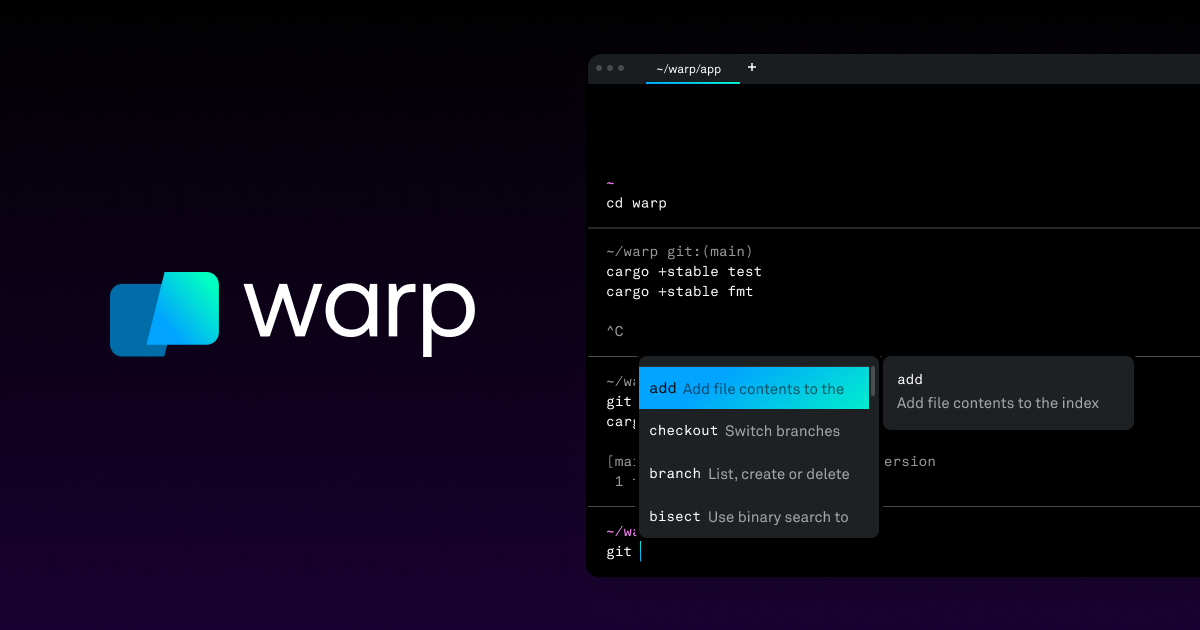
WARP IS A BLAZINGLY FAST, RUST-BASED TERMINAL REIMAGINED FROM THE GROUND UP TO WORK LIKE A MODERN APP.
Download en installer Warp Terminal
Open Warp Terminal.
Install ohmyzsh:
sh -c "$(curl -fsSL https://raw.github.com/ohmyzsh/ohmyzsh/master/tools/install.sh)"
install starship:
curl -sS https://starship.rs/install.sh | sh
add starship to zsh config:
sudo nano ~/.zshrc
To the bottom add the following line:
[[ -f ~/.zsh/aliases.zsh ]] && source ~/.zsh/aliases.zsh
[[ -f ~/.zsh/starship.zsh ]] && source ~/.zsh/starship.zsh

eval "$(starship init zsh)"
Create a config file for Starship:
mkdir -p ~/.config && touch ~/.config/starship.toml
Edit the config file:
sudo nano ~/.config/starship.toml
Add the following text:
# ~/.config/starship.toml
# Inserts a blank line between shell prompts
add_newline = true
# Change command timeout from 500 to 1000 ms
command_timeout = 1000
# Change the default prompt format
# ---
# old config ...
# format = """\
# [╭╴](238)$env_var \
# $all[╰─](238)$character"""
# new config
format = """$env_var $all"""
# Change the default prompt characters
[character]
# old config
# success_symbol = "[](238)"
# error_symbol = "[](238)"
success_symbol = ""
error_symbol = ""
# Shows an icon that should be included by zshrc script based on the distribution or os
[env_var.STARSHIP_DISTRO]
format = '[$env_value](white)'
variable = "STARSHIP_DISTRO"
disabled = false
# Shows the username
[username]
style_user = "white"
style_root = "white"
format = "[$user]($style) "
disabled = false
show_always = true
[hostname]
ssh_only = false
format = "on [$hostname](bold yellow) "
disabled = false
[directory]
truncation_length = 1
truncation_symbol = "…/"
home_symbol = " ~"
read_only_style = "197"
read_only = " "
format = "at [$path]($style)[$read_only]($read_only_style) "
[git_branch]
symbol = " "
format = "via [$symbol$branch]($style) "
# truncation_length = 4
truncation_symbol = "…/"
style = "bold green"
[git_status]
format = '[\($all_status$ahead_behind\)]($style) '
style = "bold green"
conflicted = "🏳"
up_to_date = " "
untracked = " "
ahead = "⇡${count}"
diverged = "⇕⇡${ahead_count}⇣${behind_count}"
behind = "⇣${count}"
stashed = " "
modified = " "
staged = '[++\($count\)](green)'
renamed = "襁 "
deleted = " "
[kubernetes]
format = 'via [ﴱ $context\($namespace\)](bold purple) '
disabled = false
# (deactivated because of no space left)
#
[terraform]
format = "via [ terraform $version]($style) 壟 [$workspace]($style) "
disabled = true
[vagrant]
format = "via [ vagrant $version]($style) "
disabled = true
[docker_context]
format = "via [ $context](bold blue) "
disabled = true
[helm]
format = "via [ $version](bold purple) "
disabled = true
[python]
symbol = " "
python_binary = "python3"
disabled = true
[nodejs]
format = "via [ $version](bold green) "
disabled = true
[ruby]
format = "via [ $version]($style) "
disabled = true
add zsh config folder:
sudo mkdir ~/.zsh/
Add starship config to zsh:
sudo nano ~/.zsh/starship.zsh
Add the following text to the file:
# find out which distribution we are running on
LFILE="/etc/*-release"
MFILE="/System/Library/CoreServices/SystemVersion.plist"
if [[ -f $LFILE ]]; then
_distro=$(awk '/^ID=/' /etc/*-release | awk -F'=' '{ print tolower($2) }')
elif [[ -f $MFILE ]]; then
_distro="macos"
fi
# set an icon based on the distro
# make sure your font is compatible with https://github.com/lukas-w/font-logos
case $_distro in
*kali*) ICON="ﴣ";;
*arch*) ICON="";;
*debian*) ICON="";;
*raspbian*) ICON="";;
*ubuntu*) ICON="";;
*elementary*) ICON="";;
*fedora*) ICON="";;
*coreos*) ICON="";;
*gentoo*) ICON="";;
*mageia*) ICON="";;
*centos*) ICON="";;
*opensuse*|*tumbleweed*) ICON="";;
*sabayon*) ICON="";;
*slackware*) ICON="";;
*linuxmint*) ICON="";;
*alpine*) ICON="";;
*aosc*) ICON="";;
*nixos*) ICON="";;
*devuan*) ICON="";;
*manjaro*) ICON="";;
*rhel*) ICON="";;
*macos*) ICON="";;
*) ICON="";;
esac
export STARSHIP_DISTRO="$ICON"
Create aliases file for zsh:
sudo nano ~/.zsh/aliases.zsh
Add the following text:
# Alias
# ---
#

# mac OS shortcuts
alias code="open -a 'Visual Studio Code'"

# ALIAS COMMANDS
alias ls="exa --icons --group-directories-first"
alias ll="exa --icons --group-directories-first -l"
alias g="goto"
alias grep='grep --color'
Install exa:
brew install exa
Download en installer het Nerd Hackfont
Maak een warp config folder en thema folder:
sudo mkdir ~/.warp
sudo mkdir ~/.warp/themes
creëer het thema:
sudo nano ~/.warp/themes/starship.yml
voer de volgende tekst in:
accent: '#28b9ff' # Accent color for UI elements
background: '#121212' # Terminal background color
details: darker # Whether the theme is lighter or darker.
foreground: '#f1f1f1' # The foreground color.
terminal_colors: # Ansi escape colors.
  bright:
    black: '#666666'
    blue: '#5c78ff'
    cyan: '#5ac8ff'
    green: '#905aff'
    magenta: '#5ea2ff'
    red: '#ba5aff'
    white: '#ffffff'
    yellow: '#657b83'
  normal:
    black: '#121212'
    blue: '#2b4fff'
    cyan: '#28b9ff'
    green: '#7129ff'
    magenta: '#2883ff'
    red: '#a52aff'
    white: '#f1f1f1'
    yellow: '#3d2aff'
Nu kan je in de settings van Warp (de GUI) het nieuwe thema selecteren en je moet hier het nieuwe font Hack Nerd Font selecteren.
Thats it. (btw mocht niet alles gelijk goed werken ff een reboot)